
Patient guide to sign up using your existing NHS Login
When you use your existing NHS login account, please use the same email address for NHS login as the email that your GP used to sign you up for Optimise BP (usually the email address held on your GP record).
If you don’t have an NHS Login account, or you are not sure which emails have been used for these accounts, come out of this guide and choose the guide ‘Sign in with OptBP’
Step 1- Download Optimise BP from the App or Play store
Google Play: play.google.com/store/apps/details?id=io.optimise.bp.app

iOS: apple.co/3LVrsg7
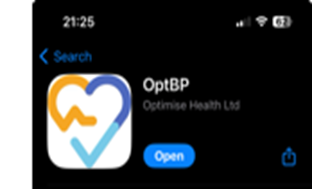
Once downloaded you will see the following login options:

Step 2 - start NHS Login Route
- Click on Continue to NHS Login.
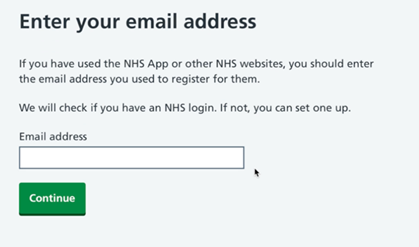
- Enter your NHS log in email address
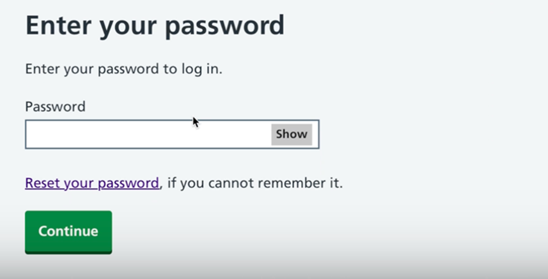
Enter your password for your NHS login
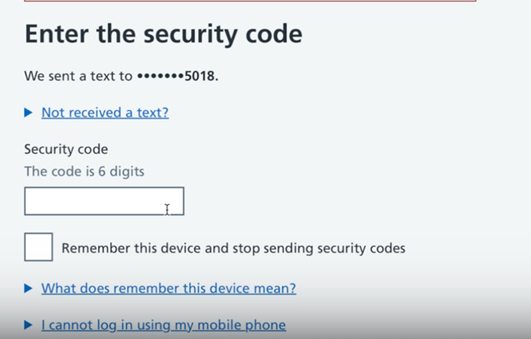
- Enter the security code, which will be sent by text to your mobile phone.
- Tick the box that says ‘remember this device and stop sending security codes’
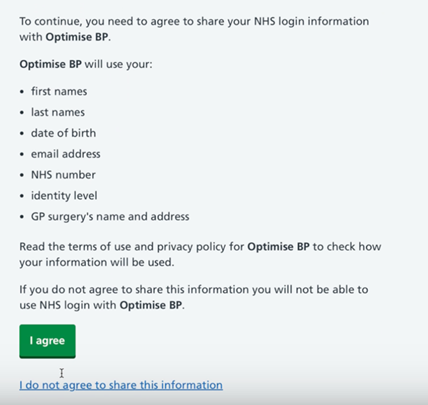
- Agree to share information with Optimise BP
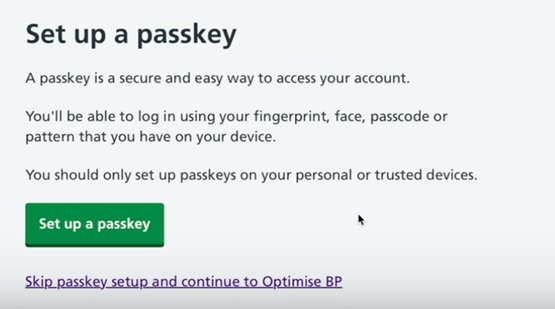
- Set up a passkey to allow you easier access to the Optimise BP App later.
Was this article helpful?
That’s Great!
Thank you for your feedback
Sorry! We couldn't be helpful
Thank you for your feedback
Feedback sent
We appreciate your effort and will try to fix the article