
Signing in using the OptBP route without using NHS login.
For those patients already using Optimise BP, please start at Step 2 - Activate two factor authentication.
For patients new to Optimise BP start here.
Click on “Sign up with OptBP”
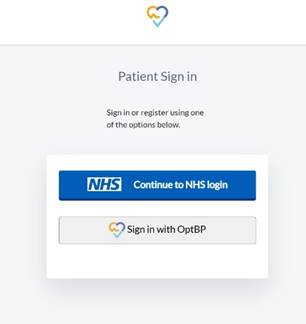
Step 1 – Sign In
- On your smartphone go to ‘pt.optbp.com’
- Click on ‘AuthCode’
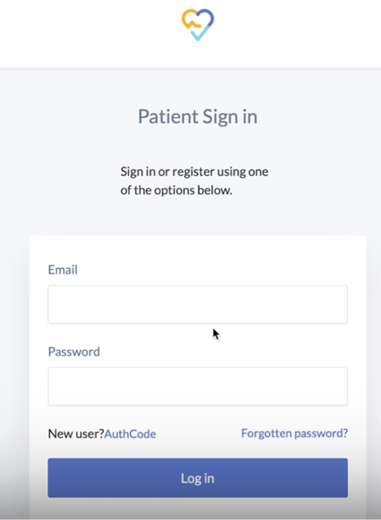
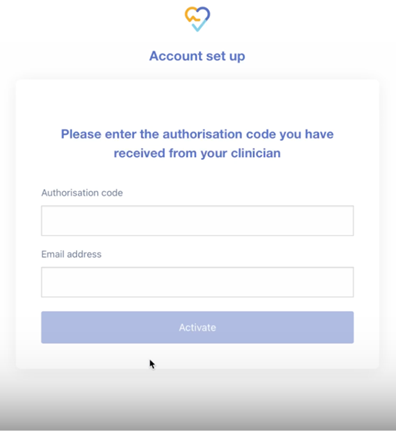
- Enter the authorisation code given to you by your GP practice
- Enter the email address that your practice has on file for you
- Click ‘Activate’.
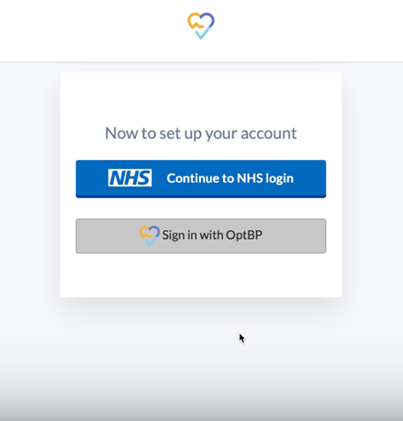
Choose ‘Sign in with OptBP’.
Enter a password that meets the correct criteria.
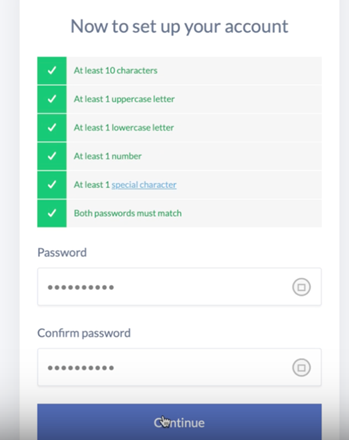
Step 2 - Activate two factor authentication.
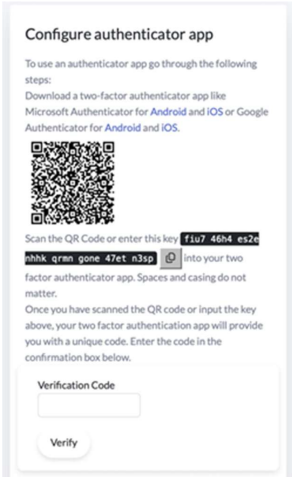
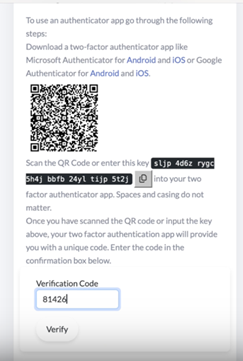
Download a two-factor authenticator app like Microsoft Authenticator for Android and iOS or Google Authenticator for Android and iOS. Follow the instructions on the screen.
It is best to set Optimise BP up from your phone. Therefore scanning the QR code is not likely to be possible. Instead copy the ‘key’ which is the long string of numbers and letters.
You can copy the key in 2 ways:
- by pressing this icon before downloading the Authenticator App.:

- or you can make a written note of the long key number.
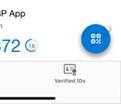
Open the Authenticator and click on the blue button
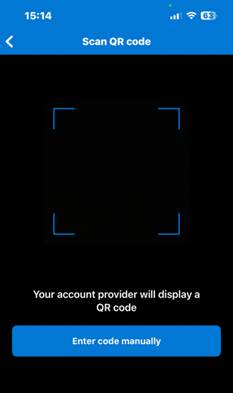
Scan the QR code or enter the code manually by clicking “Enter code manually”.
Click on “Other (Google, Facebook, etc)”
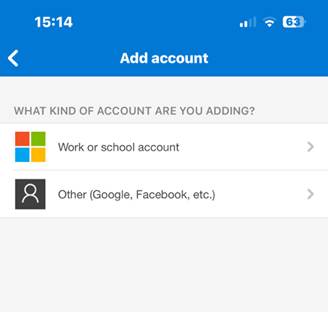
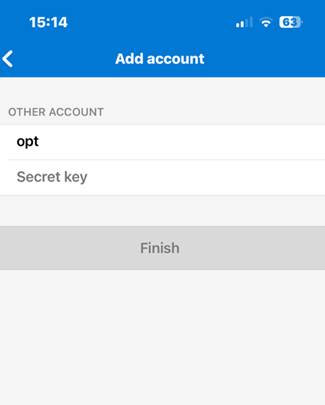
- Enter a name for your account (suggested: Optimise BP).
- Enter the ‘secret key’. This is the long string of numbers and letter that you wrote down earlier or copied to clipboard. If copied to clipboard, you can now paste this into the space that says ‘secret key’.
- Click “Finish”
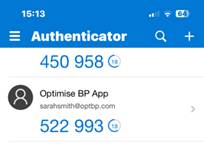
In the Authenticator app you will see the time limited six-digit code for your Optimise BP account.
Take a note of the six digit number giving enough time before expiry.
- Return to the Optimise BP website where it was asking for the authenticator code
- Enter the six digit number where it says ‘verification code’
- Click ‘Verify’.
Step 3 - Save your recovery codes
- Make a copy of the recovery codes
- Keep them in a safe place as you may need them in the future.
- Click ‘Continue’ at the bottom of the page.
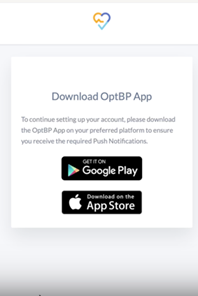
Step 4 – Finish registering in the OptBP app
Download the App.
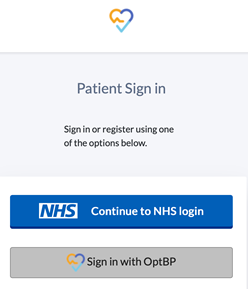
Then click ‘Sign in with OptBP’
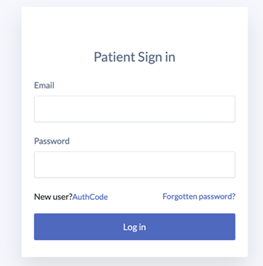
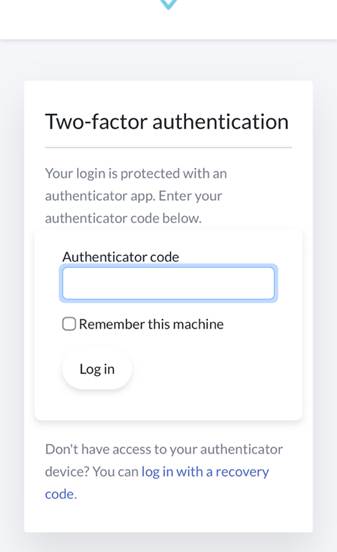
Enter your email address and password for Optimise BP and click ‘Log in’
- Go to the Authenticator app
- Get a new six digit code
- Enter it into the blank box
- Tick ‘remember this machine’.
- Click ‘Log in’.
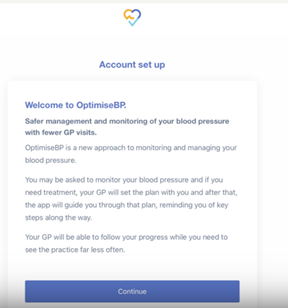
- You will see the Account set up page.
- Continue through the screens.
Dealing with problems.
If I lose my authenticator?
If you no longer have access to your authenticator, please use the recovery codes that you will have saved early in the process. If you can’t find the recovery codes:
- Click on the 3 blue lines top right of your Optimise BP record
- Click on “Account”
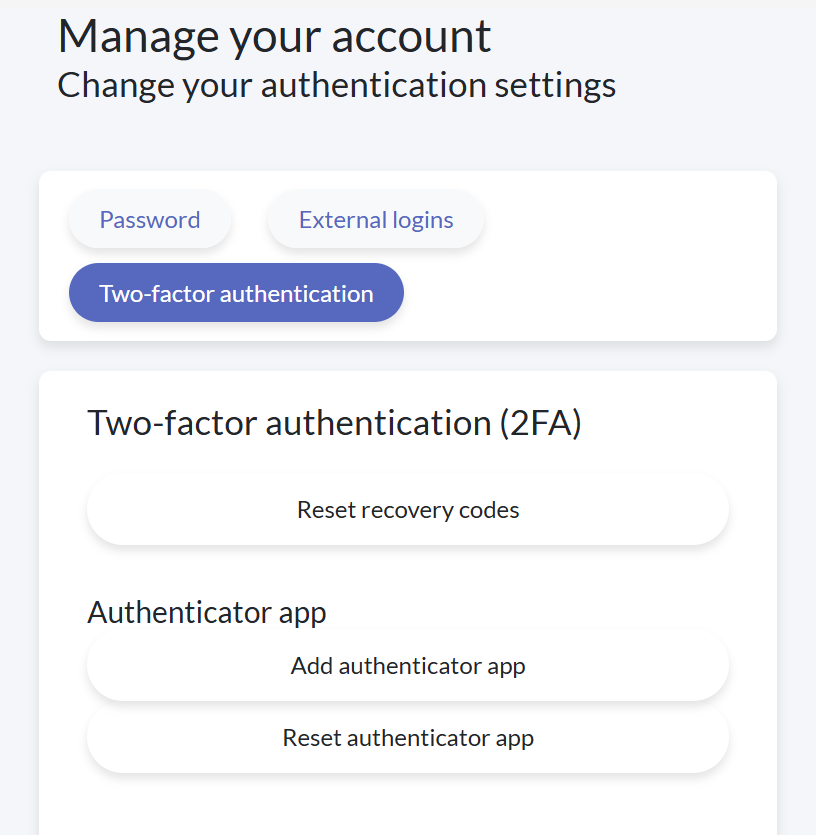
- You will see this screen:
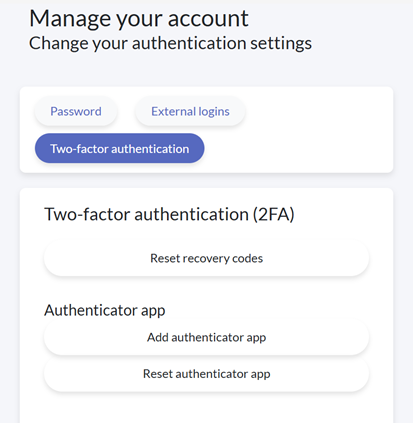
- To create more Recovery Codes, click on “Reset recovery codes”
Was this article helpful?
That’s Great!
Thank you for your feedback
Sorry! We couldn't be helpful
Thank you for your feedback
Feedback sent
We appreciate your effort and will try to fix the article